How to Resize Images for Instagram, Passport Photos and Print
The right image size depends on where the picture is going. A photo that looks fine on your phone can be rejected by a form, cropped badly by Instagram, or printed soft at the shop.
This guide covers the sizes that matter most, how pixels and print size relate, and how to resize many pictures at once without installing anything.
Pixels, inches and DPI in one minute
A digital picture is a grid of pixels. Print size depends on how many pixels fit into each inch, called DPI.
- At 300 DPI, a 4 x 6 inch print needs about 1200 x 1800 pixels.
- An A4 page (about 8.3 x 11.7 inches) at 300 DPI needs about 2480 x 3508 pixels.
- For screens, DPI barely matters. Pixel width and height are what count.
If you make a picture bigger than its original size, it looks soft. Shrinking is safe, but enlarging is not.
Instagram sizes
Instagram changes its layouts from time to time, so check the current recommendation. At the time of writing, these common sizes work well:
- Square post: 1080 x 1080 pixels
- Portrait post (4:5): 1080 x 1350 pixels
- Story or Reel (9:16): 1080 x 1920 pixels
Portrait posts take up more screen space in the feed, which is why many photographers use 4:5.
If your picture is a different shape, you can crop it to the ratio, or fit it inside the frame with borders.
Passport and ID photos
Rules differ by country, so always check the official requirements for yours. As an example, a US passport photo is 2 x 2 inches (51 x 51 mm). Other countries use different sizes, such as 35 x 45 mm.
Common requirements include a plain background, a specific head size and a recent photo. Resizing alone will not make a photo compliant, so make sure the framing is right before you resize to the exact dimensions.
Print sizes
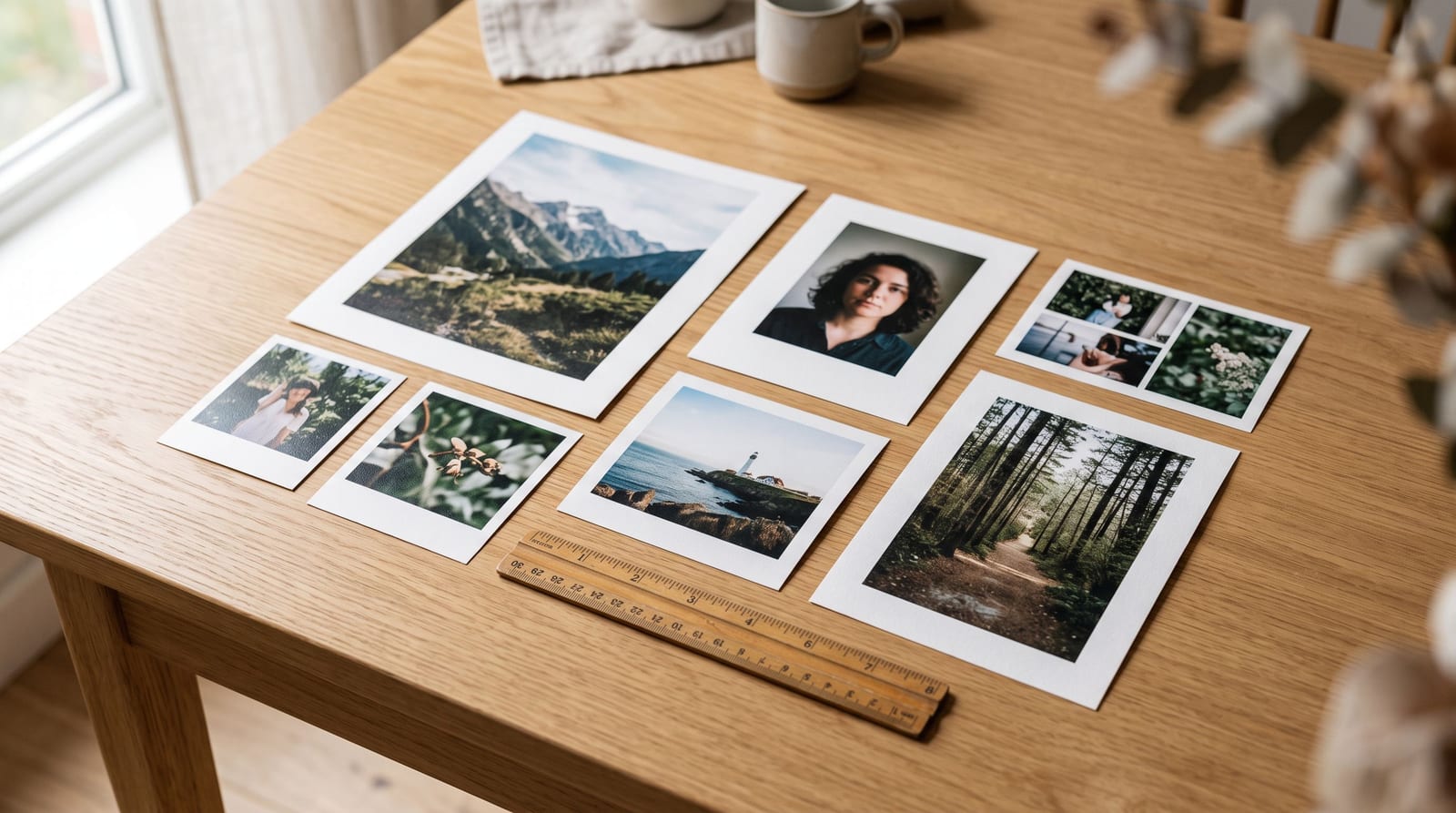
For prints, start from the print size and work back to pixels at 300 DPI:
| Print size | Approximate pixels at 300 DPI |
|---|---|
| 4 x 6 in | 1200 x 1800 |
| 5 x 7 in | 1500 x 2100 |
| 8 x 10 in | 2400 x 3000 |
| A4 | 2480 x 3508 |
If the shop shows a warning that your image is too small, the picture does not have enough pixels for that print size.
How to resize pictures for free
The free image resizer works in your browser, so your pictures are not uploaded.
- Drop in one picture or many.
- Choose how to resize: by percent, to an exact width and height in pixels, centimeters, inches or millimeters, or pick a ready-made size for Instagram, passport photos or print.
- Choose how the picture fits: fit inside, crop to fill, add borders, or stretch.
- Download the results one by one or as a ZIP.
If the file is too large after resizing, use the image compressor to reduce the file size, or crop first with the image cropper.
Tips
Resize a copy. Keep the original so you can export other sizes later.
Resize once. Repeated resizing and saving as JPG reduces quality each time.
Match the ratio before the size. A 4:5 target needs a 4:5 crop first, otherwise the picture will be stretched or padded.
Check file size limits. Some forms limit both dimensions and kilobytes. Our guide to compressing an image to 100 KB covers that.
Questions people ask
What size is best for Instagram? 1080 pixels wide, with a height set by the ratio you want. Portrait 4:5 at 1080 x 1350 is a common choice.
What does DPI mean? Dots per inch. It sets how many pixels are printed per inch. 300 DPI is the usual target for good prints.
Can I resize without losing quality? Shrinking keeps quality well. Enlarging cannot add detail that was not there.
Are my pictures uploaded? No. The resizer runs in your browser.
Summary
Work out where the picture will be used, pick that size, match the ratio first, then resize. The free image resizer has ready-made sizes for Instagram, passport photos and print.