Event Photo Sharing With a QR Code: How It Works and What to Look For
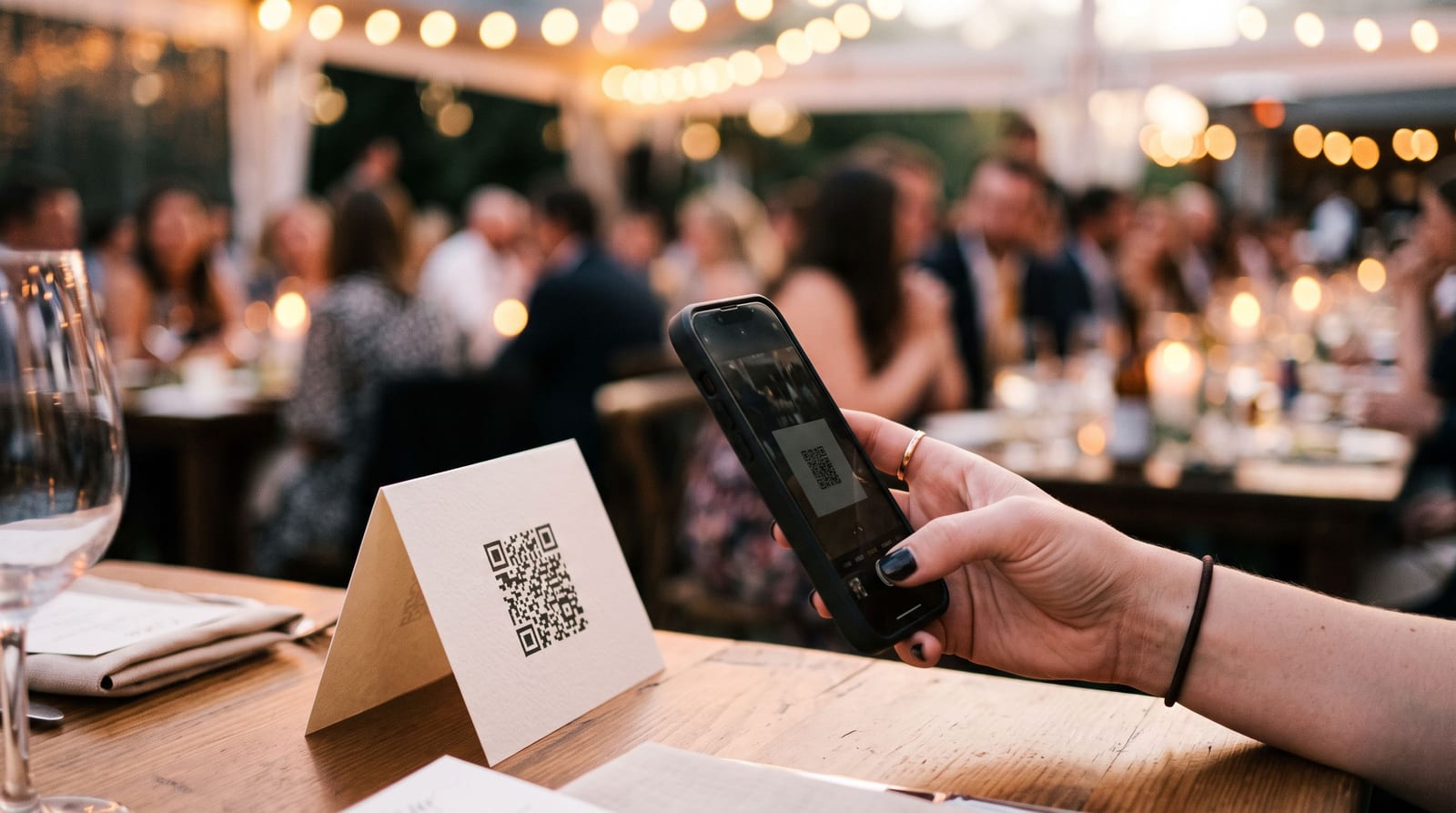
A QR code is the simplest way to get guests into a shared photo album. They point their phone camera at it, an album opens, and they upload photos or look at the ones already there. No app, no typing a long web address.
This guide explains how photo sharing with a QR code works, what to check before you choose a tool, and how to avoid the usual problems.
How it works
- You create an event album. It has its own link.
- A QR code stands in for that link. It is just the web address, printed as a square pattern.
- Guests scan it. Modern phone cameras read QR codes directly, with no extra app.
- The album opens in the browser. Guests can upload photos and see what others have added.
- Everything lands in one place. The host and photographer see all photos together.
Some tools let guests also find their own photos later with a selfie.
What to look for in a QR photo sharing tool
No app and no account for guests. Every extra step loses guests. Test it on a phone that has never used the tool.
Full-quality uploads. Check that originals are kept, not compressed.
A QR code that does not expire. Some tools tie the code to a subscription or a short trial. Ask how long the code keeps working.
Easy printing. You need cards, signs or stickers. Our free QR tent card maker makes print-ready table cards, and the place card maker can add the code to name cards.
Control for the host. Who can view, who can upload, and who can download.
Finding photos afterwards. With hundreds of photos, search matters. Selfie search saves guests from scrolling.
Where to put the QR code
- On every table, near the center
- At the entrance, where guests arrive with phones
- By the bar or cake, where people gather
- On invitations or the event page, so people can add photos from home
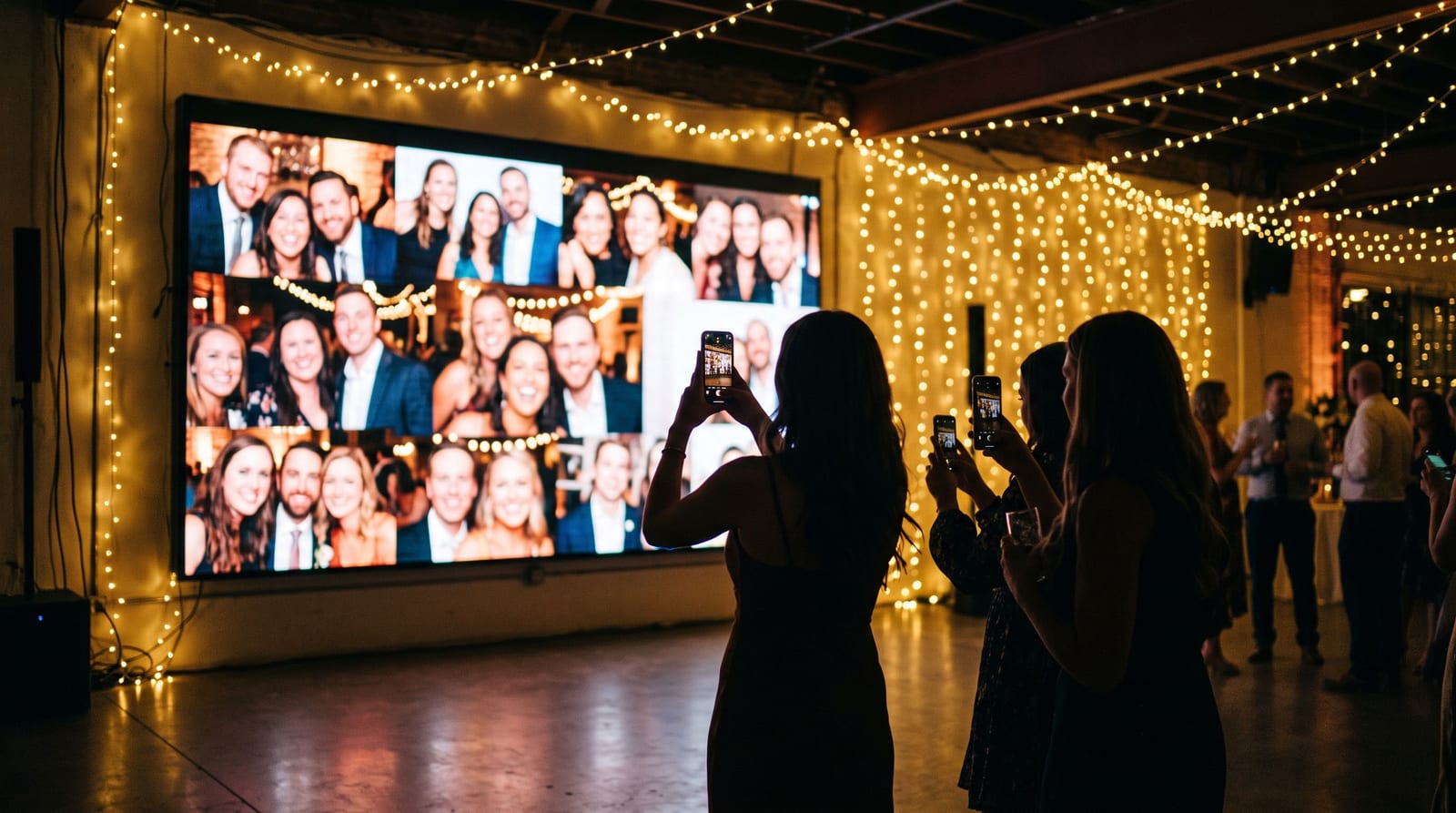
- Next to a screen, if you run a live photo wall
Keep the instruction short, such as "Scan to share your photos". People scan when it is obvious what they get.
Making the code scan reliably
- Print the code at least 2 cm (about 0.8 inch) wide
- Use dark ink on a light background
- Avoid glossy or patterned surfaces
- Test with two different phones before printing the whole batch
Free vs paid
Free tools are fine for a small event. Paid plans matter when you need more photos and videos per event, more events each month, or extras such as photo challenges. Compare what the free tier limits before you commit, and see Pixeva's pricing for the current limits.
Examples by event type
- Weddings: table cards at every seat and a sign at the entrance. See collect guest photos with a QR code.
- Birthdays: a sign by the cake. See QR code for birthday party photos.
- Conferences: a code on session slides and name badges.
- Trips: a code in the group chat and on the itinerary.
Questions people ask
Do guests need to install anything? No. Their phone camera opens the album in the browser.
Does the QR code expire? It depends on the tool. A code that holds your link directly works as long as the link does.
Is it safe to put a QR code on a table? It only opens the album link. Decide who can view and download before you share it, and avoid putting private links on public signs.
What if guests have an older phone? Most phones read QR codes through the camera. For the few that cannot, add a short web address under the code.
Summary
QR code photo sharing works when guests need no app, the code is easy to scan and the album is easy to use. Create a free event and print the code before the first guest arrives.