Using WhatsApp to Share Event Photos with Guests
Using WhatsApp to Share Event Photos with Guests
For many guests, WhatsApp is the internet.
They do not want another app. They do not want a long URL in a browser tab they will lose. They want something familiar: open chat → send a message → get a link → see photos.
WhatsApp-based event photo access meets guests where they already are—especially in mobile-first regions and at large family events.
This guide explains why WhatsApp sharing matters, how a typical bot flow works, how to set expectations for guests, and best practices for weddings, parties, and conferences.
Note: Exact bot commands and availability depend on your event configuration and product settings. Test before event day.
Why WhatsApp for event photos?
1) Zero app friction
Guests already have WhatsApp installed. You remove:
- App store downloads
- Account creation on a new platform
- “Which link was it again?” confusion
2) Mobile-native behavior
At events, people live on their phones. WhatsApp is:
- Fast on average networks
- Easy to forward to family groups
- Comfortable for less tech-savvy relatives
3) International reach
In many countries, WhatsApp is the default messenger. If you host cross-border weddings or diaspora celebrations, WhatsApp access can dramatically improve adoption.
4) Lower support load for organizers
When access is familiar, you get fewer “I can’t open the gallery” messages—if instructions are simple and tested.
What guests experience (typical flow)
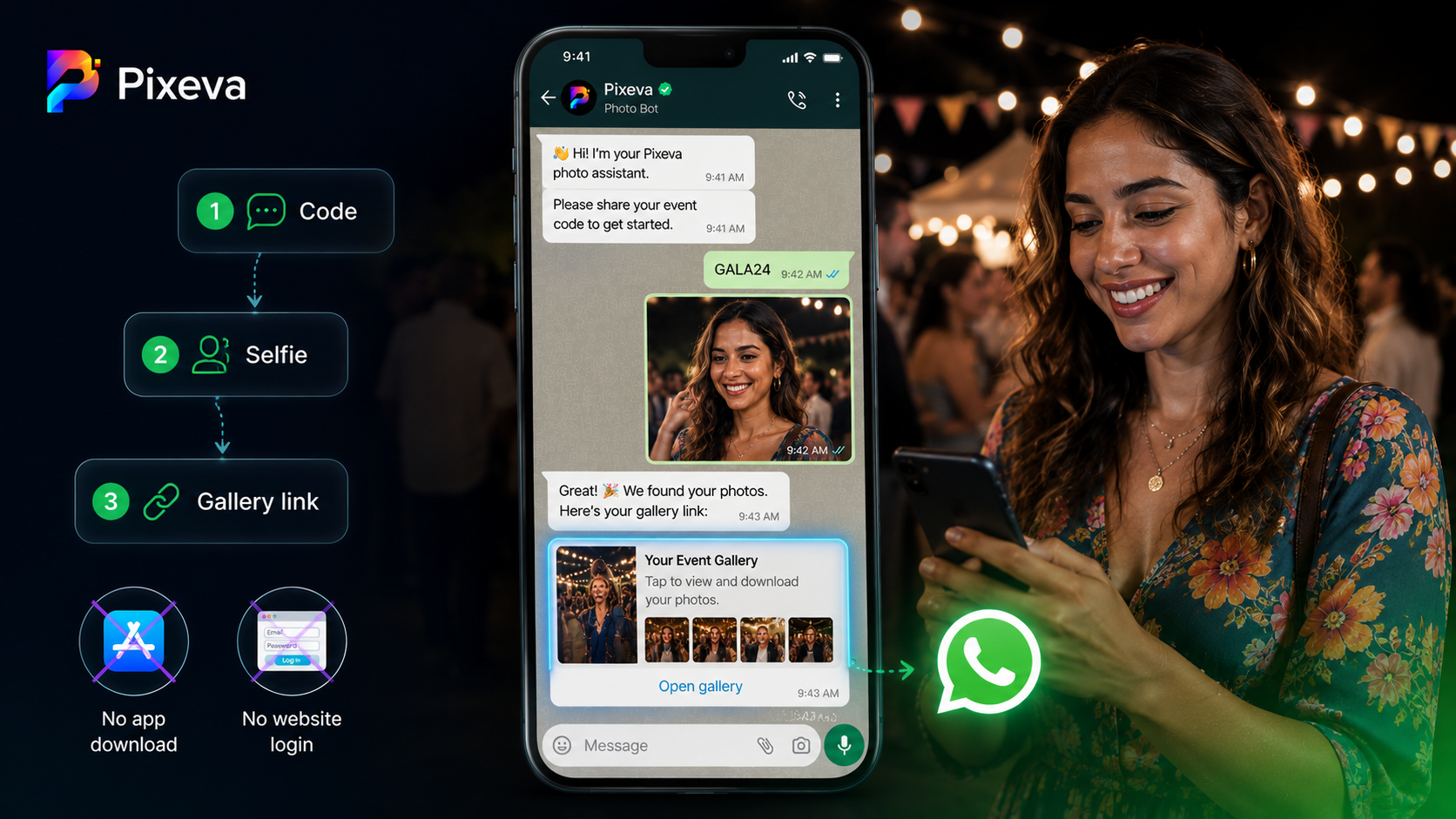
A clean WhatsApp flow usually looks like this:
- Guest receives event code (on QR card, program, MC announcement, or WhatsApp broadcast)
- Guest messages the Pixeva bot with the code
- Bot confirms the event and asks for a selfie (when face search is part of the flow)
- Guest sends selfie in chat
- Bot replies with a secure gallery link (or instructions to open photos)
- Guest browses/downloads in the mobile browser (or in-chat preview, depending on setup)
Key principle: WhatsApp is the front door; the gallery is still the source of truth for photos.
Organizer setup checklist
Before the event
- Enable WhatsApp access for the event (if your plan includes it)
- Confirm event code is short and memorable
- Print QR + one-line instructions: “Message CODE to [number] on WhatsApp”
- Test with 3 phones (iPhone, Android, older device)
- Confirm selfie + consent wording matches your privacy policy
During the event
- Announce once: “Photos via WhatsApp—scan or message CODE”
- Put code on table tents and entrance signage
- Share code in family WhatsApp groups (common at weddings)
After the event
- Resend code in thank-you message
- Remind guests before gallery expiry (if applicable)
Best practices for clear instructions
Use one instruction block everywhere:
Example copy:
Get your event photos on WhatsApp
- Open WhatsApp
- Message:
WED2026to [your bot number]- Send a clear selfie when asked
- Tap the gallery link you receive
Avoid multiple links (website + WhatsApp + email) unless you have a primary path.
Use cases by event type
Weddings
- Relatives who rarely use websites
- Family groups forwarding the bot number
- Quick selfie → all photos of them across photographers
Large parties & community events
- High mobile usage, low patience for logins
- Guests leave early but still want photos next day
Conferences (selective)
WhatsApp works well when:
- Attendee base is mobile-first
- You want fast access during networking breaks
For strict corporate environments, confirm messaging policies before promoting WhatsApp.
WhatsApp vs website-only access
| WhatsApp entry | Website/QR only | |
|---|---|---|
| Friction | Very low for WhatsApp users | Low if QR is everywhere |
| Familiarity | Extremely high in many regions | Universal but less “sticky” |
| Forwarding | Easy in family groups | Link can get lost in chats |
| Corporate events | May need policy check | Often preferred |
Best approach: offer WhatsApp and QR-to-gallery, but market one primary path per audience.
Privacy and consent reminders
WhatsApp flows often involve:
- Phone numbers (messaging metadata)
- Selfies for face matching (biometric-sensitive in many regions)
Responsible organizers should:
- Explain what the selfie is used for
- Link to privacy policy
- Avoid repurposing guest data for unrelated marketing
- Honor deletion requests where applicable
Treat WhatsApp as a service channel, not a mailing list harvest—unless you have explicit consent for marketing.
Common mistakes
- Bot number not visible on signage (guests give up)
- Code too long (
SMITH-JONES-2026-RECEPTION) — use short codes - No live test on old Android phones
- Too many steps in instructions
- Photos not uploaded yet when guests message (bot works, gallery empty—bad experience)
Troubleshooting quick fixes
“Bot didn’t reply”
- Check number, country code, and whether guest blocked business chats
- Retry on Wi‑Fi vs mobile data
“Selfie didn’t find photos”
- Retake in good light, face forward
- Wait for indexing if uploads just finished
“Link won’t open”
- Update browser, disable VPN, try copy/paste in Chrome/Safari
Conclusion
WhatsApp event photo sharing is not a gimmick—it is distribution strategy.
You are choosing the lowest-friction path for guests who already communicate in chat all day. Pair it with a strong gallery backend (upload quality, permissions, analytics) and you get adoption without endless support threads.
Enable WhatsApp access for your next event on Pixeva: (https://pixeva.co)
Keep exploring with Pixeva
Want to put this into practice? These pages go deeper: