Google Drive Integration for Event Photographers
Google Drive Integration for Event Photographers
You finished a great event. Photos are in your gallery. Then the questions start:
- “Can you put them in our Drive?”
- “Do we have a backup if something breaks?”
- “Can my editor access files without another upload?”
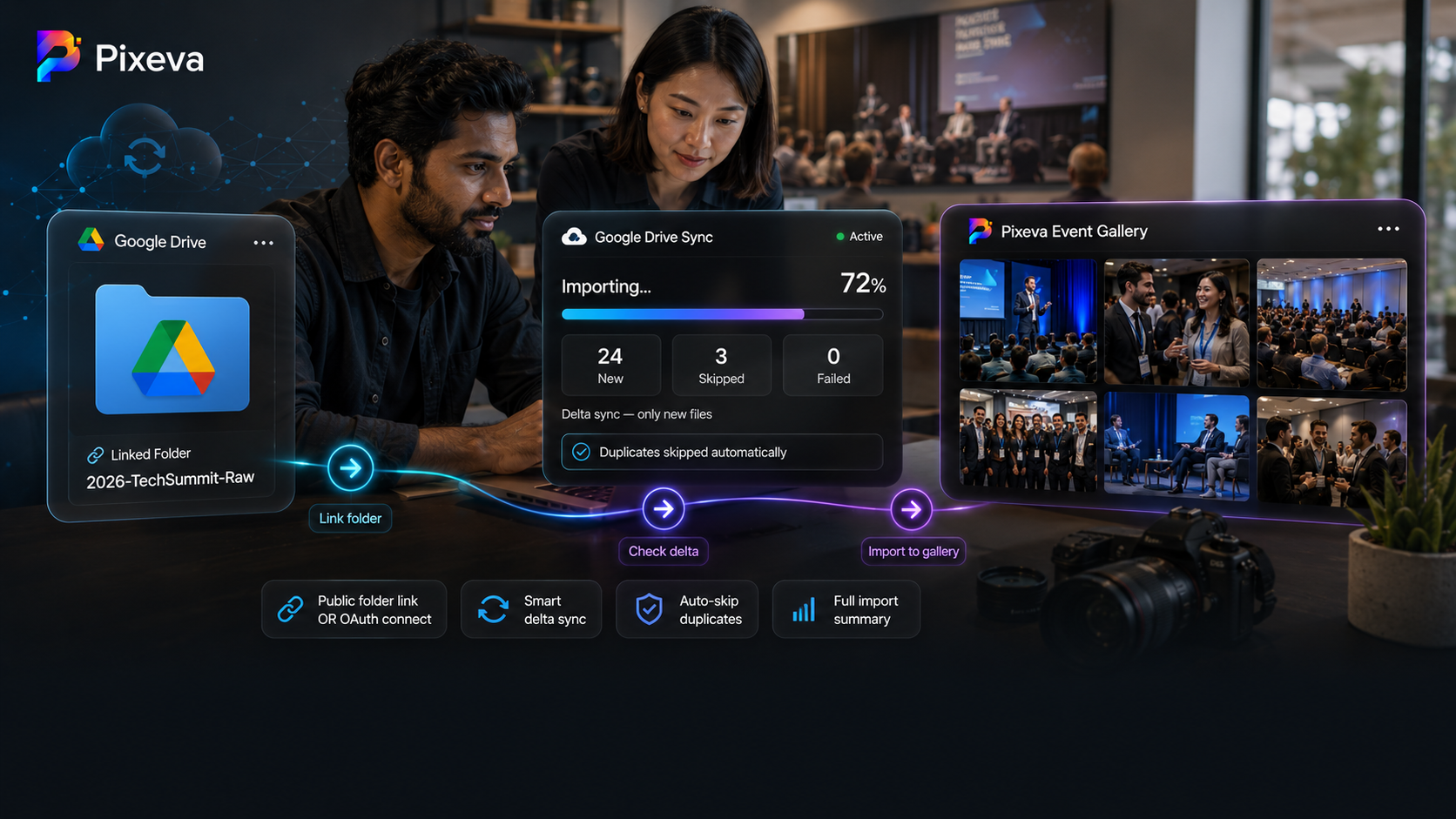
Google Drive integration connects your event gallery workflow to the cloud folder system many clients and teams already use—so backup, handoff, and collaboration happen with less manual copying.
This guide covers why Drive sync matters, how it typically works, setup steps, best practices, and common mistakes to avoid.
Note: Sync direction, folder rules, and availability depend on your plan and product settings. Confirm in your dashboard before promising clients a specific workflow.
Why photographers use Google Drive with event galleries
1) Backup peace of mind
Galleries are great for delivery. Drive adds a second copy in infrastructure many businesses already trust.
2) Client expectations
Corporate and agency clients often ask for:
- A shared Drive folder
- Predictable subfolders (Day 1, Day 2, Highlights)
- Easy permissions for internal teams
3) Team workflows
Studios may have:
- Lead photographer uploading
- Editor retouching from Drive
- Social team pulling selects
Sync reduces “download from gallery → re-upload to Drive” loops.
4) Long-term archive
Some contracts require deliverables stored in the client’s Google Workspace. Automated sync helps you meet that without extra hours.
What “Google Drive sync” usually means
In a typical integration:
- You connect your Google account once (OAuth)
- You choose a target folder (or let the product create an event folder)
- New photos uploaded to the event gallery sync to Drive automatically (or on a schedule)
- Depending on product design, updates (new batches, metadata) may sync as well
Clarify for clients: gallery is for guest experience; Drive is often for operations and archive.
Setup guide (organizer / photographer checklist)
Step 1: Connect Google Drive
- Use the studio or client’s intended Google account
- Confirm you have permission to write to the target shared drive
Step 2: Pick folder strategy
Choose one pattern and stick to it:
Pattern A — one folder per event
Clients / 2026 / Smith-Wedding / Pixeva-Gallery
Pattern B — year-based
Pixeva Events / 2026 / 03-March / Conference-ABC
Pattern C — client-owned root
Client creates parent folder; you sync into a subfolder they own
Step 3: Run a small test upload
Before the event:
- Upload 5–10 test images
- Verify they appear in Drive with correct names
- Confirm editors can open RAW/JPEG as expected
Step 4: Go live during or after the event
- During: great for incremental backup on long conferences
- After: common for weddings once culling is done
Step 5: Document handoff
Send the client:
- Drive folder link
- Gallery guest link
- Short note on what each is for
Folder organization best practices
- Mirror logical structure, not every internal gallery view
- Use consistent naming:
YYYYMMDD_eventname - Separate RAW vs edited if both sync (or sync edited only)
- Keep a
README.txtin the folder with contact + date + usage rights summary
Use cases
Automated backup
Primary goal: never lose the event.
Sync all approved photos; keep gallery as guest-facing layer.
Client delivery package
After culling, sync keepers only so Drive is not bloated with rejects.
Team editing
Editor works from Drive while you continue uploading to the gallery for guests.
Multi-photographer studios
Contributors upload to one gallery; Drive becomes the studio master archive.
Sync vs manual export (when to use which)
| Auto sync to Drive | Manual export / download | |
|---|---|---|
| Effort | Low after setup | High, repeated |
| Freshness | Continuous | Snapshot in time |
| Control | Rules-based | Full manual pick |
| Best for | Backup, teams, clients who live in Drive | One-off USB, specialized formats |
Many workflows use both: sync for operations, gallery for guests.
Security and permissions
- Use least privilege shared drives
- Avoid personal Gmail for corporate clients if policy forbids it
- Revoke access when contracts end
- Do not put public gallery links inside confidential Drive trees without intent
Remember: syncing personal event photos into the wrong Drive account is a common accident—double-check the connected account.
Common mistakes
- Wrong Google account connected (personal vs studio)
- Syncing before culling → client sees every duplicate
- No folder standard → chaos at scale
- Promising two-way sync without verifying product behavior
- Ignoring storage quotas on client Workspace
Troubleshooting
Photos not appearing in Drive
- Check connection status and token expiry
- Confirm uploads completed in gallery first
- Check Drive storage quota
Duplicates in Drive
- Often caused by re-uploading same files with new IDs—align ingest rules
- Run cull before sync if policy is “keepers only”
Slow sync
- Large batches after reception; expect delay—set client expectations
- Upload during off-peak hours for huge conferences
How Drive fits with other Pixeva-style features
Strong pipeline:
- Upload / collaborative ingest
- Auto-cull (optional)
- Publish gallery for guests
- Sync keepers to Drive for client + backup
- Analytics to see what guests loved
Each step solves a different problem; Drive is the archive and handoff layer.
Conclusion
Google Drive integration is not “extra tech”—for many clients it is the default language of file delivery.
Connect once, organize folders deliberately, sync the right subset (usually keepers), and you reduce risk while looking more professional than “here is another download link.”
Connect Google Drive and sync your next event with Pixeva: (https://pixeva.co)
Keep exploring with Pixeva
Want to put this into practice? These pages go deeper: